Issue workbench
The Workbench tab on a project detail page is where you actually work with the issues on a project. It has three parts, top to bottom:
- the saved-views strip (tabs),
- the toolbar (Group-by, filter chips, Sort),
- the issue list — flat when nothing is grouped, or sectioned into collapsible buckets when it is.
The header shows a running tally: Issues ({closed}/{total} closed).
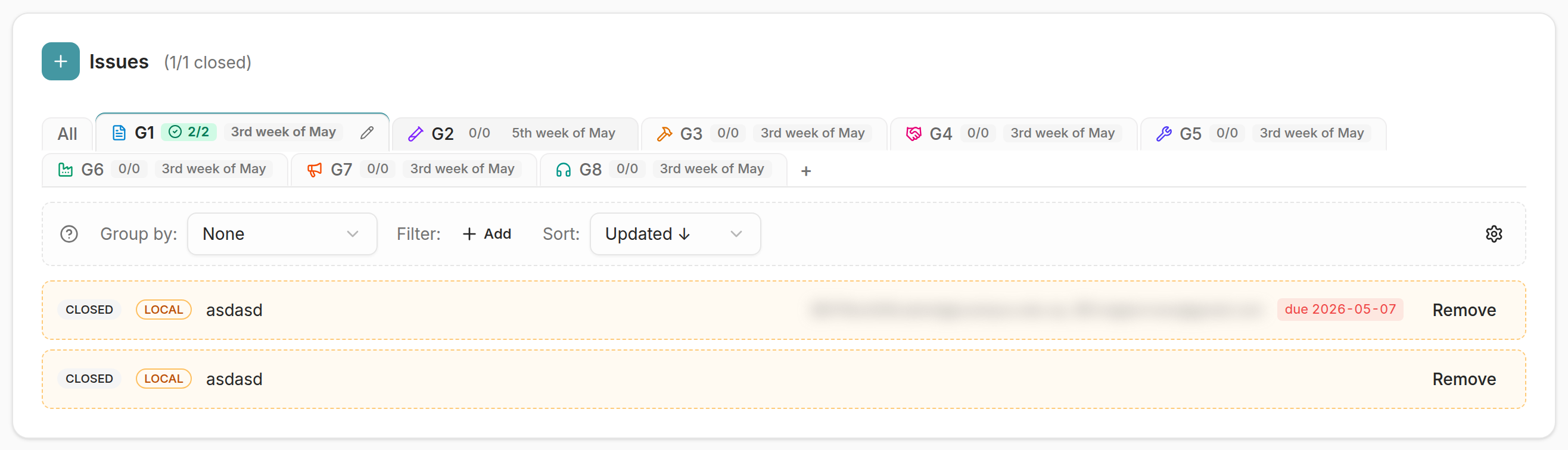
Saved views
The tabs across the top are saved views — per-user, per-project bundles of a Group-by, a Filter, and a Sort. Think of them as containers, not just searches.

- All is the implicit default tab — it’s the ad-hoc state with no saved view active.
- Click any saved view to activate it. The URL gains
?view=<id>and the toolbar takes on that view’s group/filter/sort. - Tabs are yours. Each user has their own set of saved views on a project; other people don’t see yours.
Dirty tabs
If you activate a saved view and then tweak the Group-by, Filter, or Sort, the tab gets a
* dirty marker. From there:
- Save changes — writes the current shape back onto the active view.
- Discard — drops your overrides and puts the view back as saved.
Editing the URL directly also counts as a dirty override — the intent is “explicit ad-hoc edit”, even if the value happens to match the saved one.
Creating a saved view
Use the + on the strip (or “save current as a view”) to capture the current Group-by + Filter + Sort as a new tab. There’s also a gate-progression shortcut (the G1–G8 fan-out) that creates a set of milestone/gate views in one go.
Tip: combine a categorised view (grouping by a curated list of category tags) with per-section
+buttons to use saved views as lightweight kanban columns. See Categorised views below.
Managing views in bulk
From Settings › Delete all views… on the project page, you can remove every saved view on the project at once. The issues and links are unaffected.
The toolbar
A dashed-border row with three controls:

Group by
Bucket the issue list by a dimension. Pick None to flatten back to a single list.
Common dimensions include status, milestone, and any tag-key your repos use
(e.g. category, gate). Each grouped view renders one collapsible section per bucket,
showing the bucket’s N open · M ✓ tally.
The buckets are server-authoritative — the dropdown’s counts always match the section counts because both come from the same response.
Filter
A chip-based filter builder. Add chips like:
status:opentag:gate:g3milestone:<milestone name>
Semantics:
- Chips are AND-combined across dimensions.
- Multiple values on the same dimension are OR’d within it (Linear-style).
- So
status:open status:closed tag:priority:high= “(open OR closed) AND has the priority:high tag”.
When a saved view is active and you clear every chip, the workbench writes an explicit-empty override so the view’s stored filter stays cleared — clearing chips is an intentional act, not “fall back to the saved filter”.
Sort
Three options:
- Updated ↓ (default) — most recently updated first.
- Updated ↑ — oldest updates first.
- Title A→Z — alphabetical.
The issue list

Each row shows:
- a state badge (OPEN / CLOSED),
- the repo + number (a deep link to the issue on GitHub), or a local badge for local-only notes that aren’t synced to GitHub,
- the title,
- assignees (
@user1, @user2), - a due date pill (red when past due),
- a Remove button.
Click anywhere on a row (other than its links / Remove) to open the issue detail pane on the right, which shows the full issue editor.
Remove
- On the All tab, Remove detaches the issue from the project itself.
- On a saved view tab, Remove scopes the detach to that view’s membership only — the issue stays on the project, it just leaves this view.
Categorised views
A saved view can carry a curated list of categories. When active, the workbench switches into categorised mode:
- it always groups by
tag:category, - it renders one section per category in the saved order — including categories that currently have zero issues (so you can drop work into them),
- a trailing Uncategorised section collects anything with a category tag that isn’t on the list, plus issues with no category at all.
Each curated section gets its own + button in the header, which opens the Add issue
dialog pre-scoped to that category — new issues land already tagged.
Manage a view’s categories with the gear on the right of the toolbar (only shown when a saved view is active). It opens the categories manager where you add, rename, and reorder categories for that view.
Adding issues
The + at the top of the workbench (or a section’s + in a categorised view) opens the
Add issue dialog. Use it to attach work from the workflow/triage surface to this
project (and optionally to the active view, and to a category).
When the list is empty and no categorised view is active, you’ll see a prompt: “No issues in this project yet. Click [+ Add issue] to attach work from the workflow surface.”
Collapsing sections
Grouped views open with every section collapsed to keep first paint light — open the ones you care about. Use Expand all / Collapse all in the toolbar above the sections to flip the whole set.
Next
- Schedule — the saved views on this page, plotted on a timeline.
- Project detail page
- Project portfolio