Project detail page
Route: #/projects/{id}
This is where you actually manage a single project. The header carries the name, status, linked repos/boards, description, and tags. Below it sit five KPI tiles, then a row of tabs: Workbench (the default), Exec Summary, and Schedule.
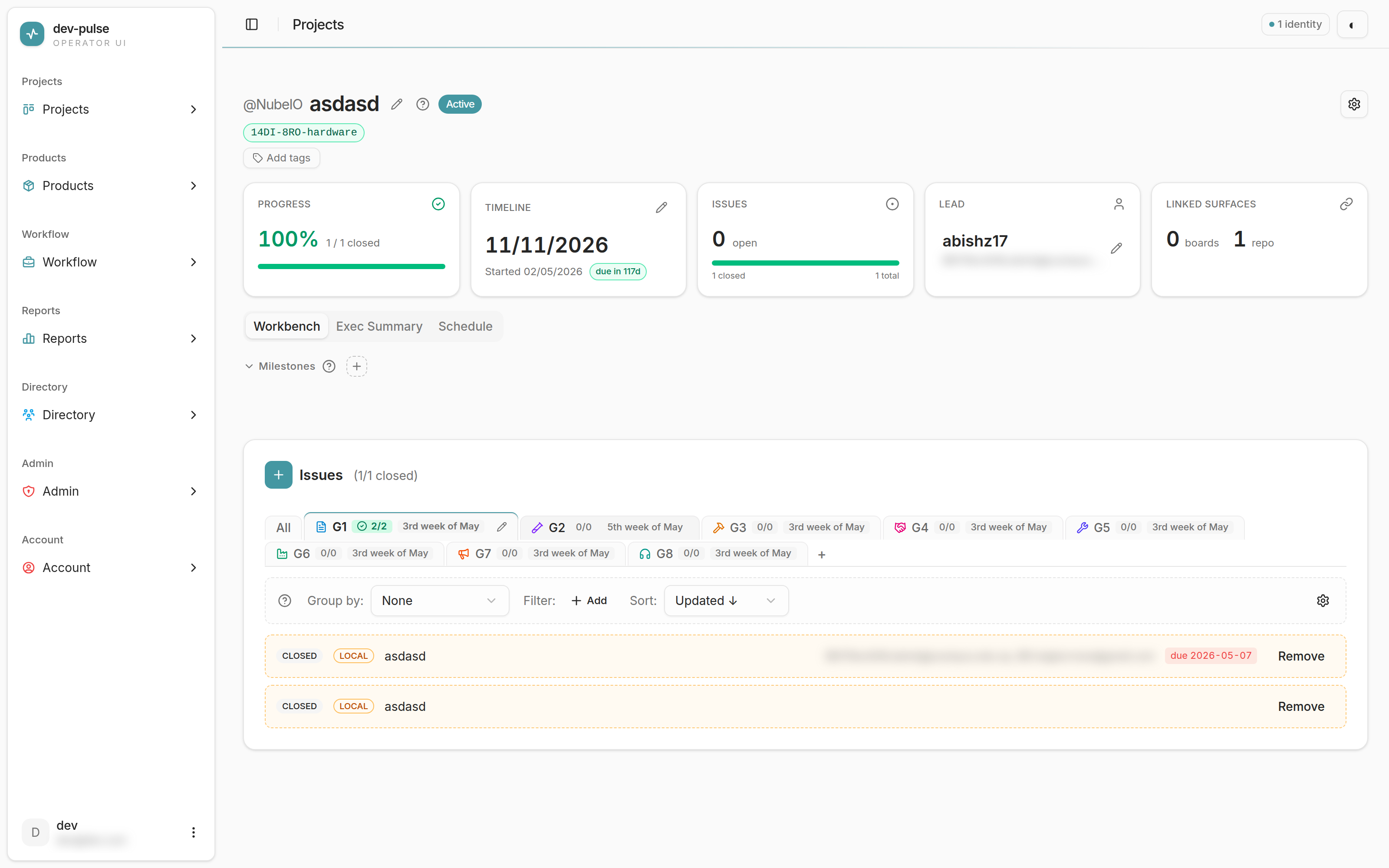
The header
- Org link (
@org-login) — opens the org on GitHub. - Project name with an inline pencil to edit details.
- Status pill — Active / Backlog / Done / Archived.
- Linked repo & board badges — green repo badges and blue board badges, each linking out to GitHub. Hidden when nothing is linked.
- Description (if set) and tags.
The KPI tiles
Five tiles computed from the data already on the page — no extra load time:

Progress
Closed issues as a percentage of total ({closed} / {total} closed), with a progress
bar. When everything is closed, the number and bar turn green and a check icon appears.
Timeline
The due date, with a coloured pill:
- green — more than a week away (
due in 12d) - amber — within a week or due today (
due in 6d,due today) - red — past due (
5d overdue)
The line below shows when the project started. Click the pencil on this tile to edit the dates.
Issues
Open count up large, with a two-segment bar showing the open/closed split and a
{closed} closed · {total} total legend underneath.
Lead
The accountable GitHub user. Shows Unassigned in muted text when none is set. Click the tile to open a picker scoped to the project’s org — pick a user to assign, or pick — Unassigned — to clear it. See Lead.
Linked surfaces
Counts of linked boards and repos. Use the Settings menu to manage these (see Link boards & repos).
Tabs

Workbench
The default landing tab. Holds the milestones strip and the issue workbench — where you group, filter, sort, and save views of the project’s issues. Full coverage in Issue workbench and Milestones.
Exec Summary
A structured, eight-section product brief — objective, scope, requirements, hardware, commercial, documents, approval, and a change log — with a completion meter and a draft → in review → approved workflow. See Exec Summary.
Schedule
A Gantt of the project’s saved views over time, with inline date editing and draggable bars. Useful for spotting which work is stacked into the same window. See Schedule.
Editing details
From the header’s pencil, or Settings › Edit details…, opens a dialog to change:
- Name
- Description
- Lead (org-scoped picker)
Only the fields you actually changed are sent, so a concurrent edit to the dates or status by someone else won’t be clobbered. If the project was edited by someone else while the dialog was open, you’ll get a stale-version error — close and reopen the dialog to pick up the fresh row.
Editing timeline
From the Timeline tile’s pencil, opens a small dialog with Start and Due date fields. Leave either blank to clear it. Start must be on or before Due — the dialog won’t let you save an inverted range.
Lead
The Lead tile is clickable. Opens a picker scoped to members of the project’s org:
- Pick a user to assign them as lead.
- Pick — Unassigned — to clear the lead.
- Writes use the same safe edit path as everything else (won’t clobber concurrent edits).
The lead can also be set when creating a project, and from Edit details. They all write the same field.
Settings menu
The gear icon in the header’s trailing actions opens a dropdown with grouped actions:
- Boards — list any linked GitHub Project boards (each with an Unlink action) and a + Link a board… entry. See Link boards & repos.
- Repos — Manage repos… opens the repo picker (choose which repos this project draws issues from).
- Products — Manage products… links products to this project.
- Actions —
- Edit details… (same as the header pencil)
- Delete all views… — permanently removes every saved view on this project. Shows the count; disabled when there are none. The project’s issues and links are unaffected. Can’t be undone.
- Archive project / Restore (see below)
The “No linked repos” warning
Until at least one repo is linked, a red banner sits under the KPI tiles explaining that milestones and most surfaces stay empty. Hit Link a repo… in the banner (or use Settings › Repos › Manage repos…) to fix it. The banner disappears as soon as the first repo is linked.
Archiving & restoring
From Settings › Archive project:
- A confirm dialog explains that archived projects are hidden from default views but keep their issue links and board mirrors.
- Restore moves the project back to Active; linked boards and issues are preserved.
Archiving is soft — nothing is deleted. It’s the recommended way to retire a project without losing its history.