Exec Summary
Route: #/projects/{id}?tab=exec-summary
The Exec Summary tab is a structured product brief that lives on the project. It’s the one-page document you hand to a stakeholder: what the product is, what’s in and out of scope, what it must do, what it costs, and who signed off.
Unlike the rest of the project page, it isn’t derived from GitHub — you write it, and dev-pulse tracks how complete it is and where it sits in an approval workflow.
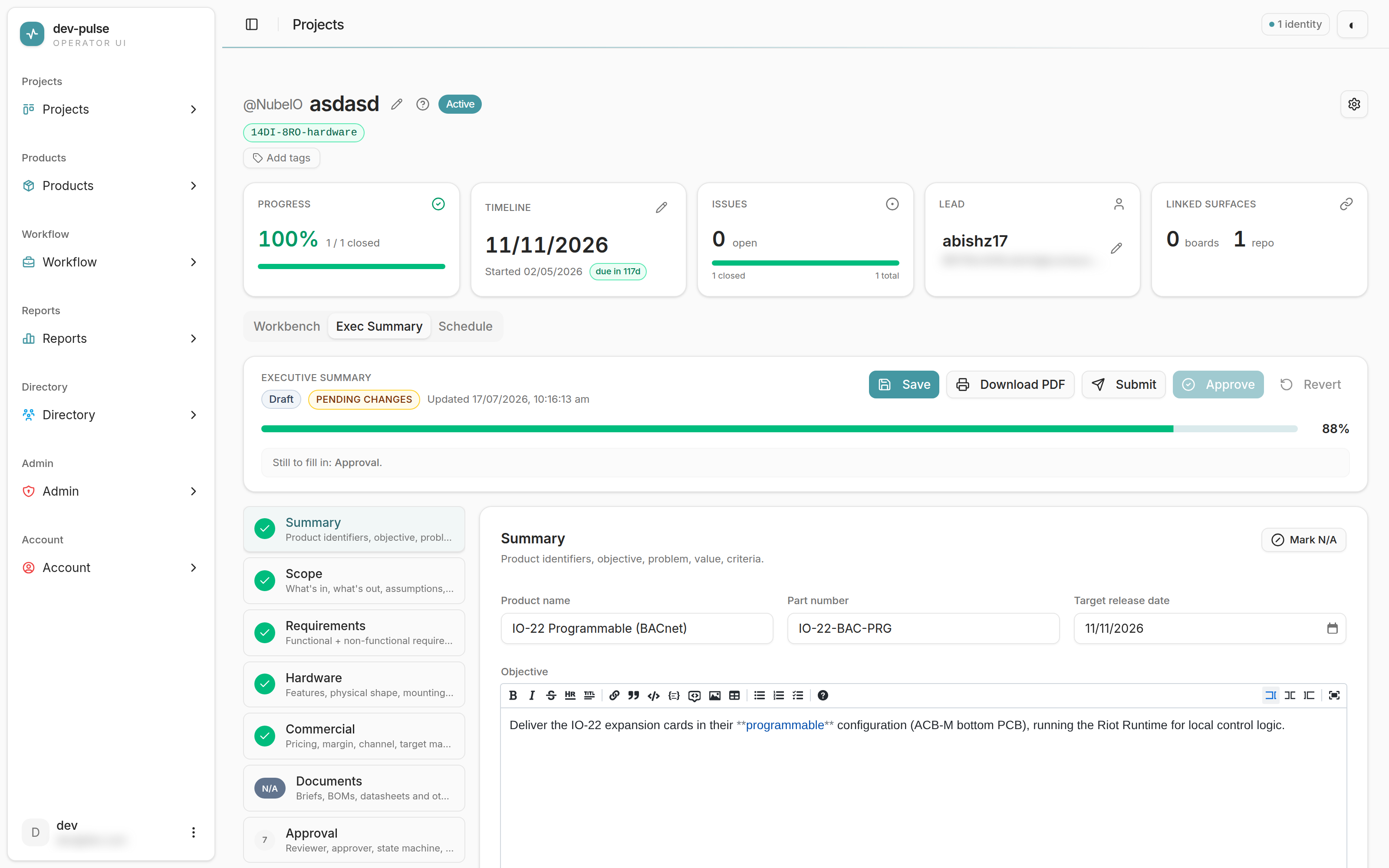
The action bar
Across the top: the current status (Draft), a PENDING CHANGES badge, when it was
last updated, and the actions.
| Action | What it does |
|---|---|
| Save | Writes your edits. |
| Download PDF | Exports the summary as a PDF. |
| Submit | Moves Draft → In review. Needs 80% completion. |
| Force submit | Submits below the threshold. Logged separately in the audit trail. |
| Approve | Moves In review → Approved. |
| Revert | Sends it back to Draft from any state. |
PENDING CHANGES isn’t a workflow state — it means the summary has been edited since the last version was cut in the change log. It disappears when you save a new version.
The completion meter
The bar shows how complete the summary is, and the line under it names what’s outstanding (“Still to fill in: Approval.”).
Completion is eight sections, each worth 12.5% — all-or-nothing per section. A section counts as complete only when its required fields are filled:
| Section | Counts as complete when |
|---|---|
| Summary | Product name, objective, and success criteria are all set. |
| Scope | Both in-scope and out-of-scope are set. |
| Requirements | Must-have is set and at least one protocol is listed. |
| Hardware | Hardware features are set, or at least one image is uploaded. |
| Commercial | Both RRP and target GP% are set. |
| Documents | At least one document is attached. |
| Approval | The summary has been approved. |
| Change log | At least one change-log entry exists. |
Two consequences worth knowing:
- Fields that don’t count. Problem, value, differentiators, part number, and target release date are all useful — but they don’t move the meter. Only the fields above do.
- 88% is the pre-submit ceiling. The Approval section only completes once the summary is approved, which can’t happen before it’s submitted. So the highest you can reach before submitting is seven of eight sections. That’s fine — the gate is 80%.
Mark N/A
Not every section applies to every project. Mark N/A on a section excludes it from the calculation and counts it as done — the section shows an N/A badge instead of a number.
In the screenshot above, Documents is marked N/A, which is why the summary reaches 88% with no files attached. Software-only projects will usually mark Hardware N/A the same way.
The sections
The left rail lists all eight, each with a tick when complete, an N/A badge when skipped, or its number when still outstanding. Click one to jump to it.
- Summary — product identifiers, objective, problem, value, criteria.
- Scope — what’s in, what’s out, assumptions, dependencies, constraints.
- Requirements — functional and non-functional requirements, architecture, protocols, power, mounting, certification.
- Hardware — features, physical shape, mounting, operating environment.
- Commercial — pricing, margin, channel, target market.
- Documents — briefs, BOMs, datasheets, and other attachments.
- Approval — reviewer, approver, and the state machine.
- Change log — an append-only history of revisions.
Validate (at the top of the rail when fields are incomplete) jumps you through every incomplete field in one pass, rather than hunting section by section.
Long-text fields are markdown
Objective, problem, value, and the other long-text fields use a markdown editor — the toolbar writes bold, italics, lists, links, tables, and code fences. What you type is stored as markdown and rendered the same way in the PDF export.
The workflow
Three states:
Draft  ──Submit──▶  In review  ──Approve──▶  Approved
  ▲                      │                      │
└───────── Revert ◀────┴──────────────────────┘- Submit requires 80% completion. Below that, the button explains what’s missing — use Force submit to override, which is recorded distinctly in the audit log.
- Approve takes an optional note.
- Revert works from any state and always lands back in
Draft.
Change log
Each entry records a version label, a date, who made the change, and a summary. The change log is append-only — entries can be removed and restored, and a restore is itself recorded as a new entry.
Cutting a version clears the PENDING CHANGES badge.